
Effortless & Smart Guide to Merge Guest Lists and Print Conference Name Badges
We’ve all been there: it’s the night before the event, the guest list is still changing, and you’re staring at a spreadsheet wondering how you’ll print 300 badges before sunrise.
Deep breath. You can merge your guest list cleanly and print conference name badges without the stress. This guide shows you how to clean your guest list and merge guest lists easily into badge artwork using Canva, Microsoft Word, or Adobe InDesign. If halfway through you decide you’d rather skip the drama, have a look at the one-step Terra Tag option.

1. How to Clean and Merge Guest Lists in Excel or Google Sheets

Always clean your spreadsheet before you merge guest lists and create a clean, single source of truth.
- Columns:
- A: First Name
- B: Last Name
- C: Organisation
- D: Job Title (optional)
- Add Pronouns or other fields if needed
- Fix spelling and capitalisation, remove duplicates and extra spaces.
- Save as: CSV (Comma Delimited). Not CSV UTF-8, not TSV. The merge will print exactly what’s in the CSV, so accuracy matters.
Microsoft’s mail-merge docs recommend preparing structured columns and clean your guest line spreadsheet for printing badges.
Pro tip: Always add 5–10 blank badges. Use Avery Eco Labels for last-minute VIPs so every guest name still looks professional (no one feels like a “marker-pen afterthought”).
2. Choose Your Tool to Merge Guest Lists Efficiently
Each platform handles a guest list merge differently: Canva, Word, and InDesign all support automated badge creation. Choose the path that suits your team and makes your guest list merge smoother:
- Canva: visual, quick, great if you’ve built the badge in Canva already. Uses Bulk Create to merge CSV data into a design.
- Word: familiar and reliable for office workflows via Mail Merge on the Mailings tab.
- InDesign: the most control and robustness at scale via Data Merge.

3. Using Canva to Merge a Guest List
Canva’s Bulk Create makes it simple to merge a guest list visually.
- Open your badge template or download our free templates in Canva.
- Use the Canva mail merge feature (Bulk Create) to automatically place guest names into your badge layout. In the editor’s left panel, open Apps, choose Bulk Create.
- Upload your CSV.
- Add text boxes for fields (First Name, Last Name, Organisation…) and map each to the matching CSV column.
- Click Continue and Generate designs. Review a few records.
Export from Canva for print
- Share → Download → PDF Print (300 dpi).
- Leave bleed/crops off.
- CMYK is fine; high-contrast designs print best.
Free Resource: How to Create Conference Name Badges in Canva That Don’t Suck

4. Using Microsoft Word for Mail Merge
Microsoft’s Word mail merge is ideal if your team already uses Office. It’s fast, reliable, and helps you merge guest list data directly into templates. Open your badge template or download our free template in Word.
- Go to Mailings → Start Mail Merge (Labels or Letters both work for badges).
- Select Recipients → Use Existing List, choose your CSV.
- Insert Merge Field for First Name, Last Name, etc., into the right spots on the badge.
- Preview Results to check a few records.
- Finish & Merge → Edit Individual Documents to generate a merged document with all badges.
- File → Save As → PDF. Check page size matches your badge layout.
Free resource: How to Create Custom Name Badges in Word (The Stress-Free Guide + Free Templates)

5. Using InDesign Data Merge
- Open your badge layout in InDesign.
- Window → Utilities → Data Merge to open the panel.
- Panel menu → Select Data Source …, choose your CSV.
- Insert data placeholders (drag fields into text frames).
- Click Preview to flip through a few records and check overflow.
- Create Merged Document when ready.
Export from InDesign for print
- File → Export → Adobe PDF (Print).
- Preset High Quality Print.
- Marks & Bleeds: leave crop/bleed off and set bleed/slug to 0 mm.
- Export front and back as separate PDFs if designed separately.
Free resource: Adobe Help Center

6. Design rules that make badges work (front and back)
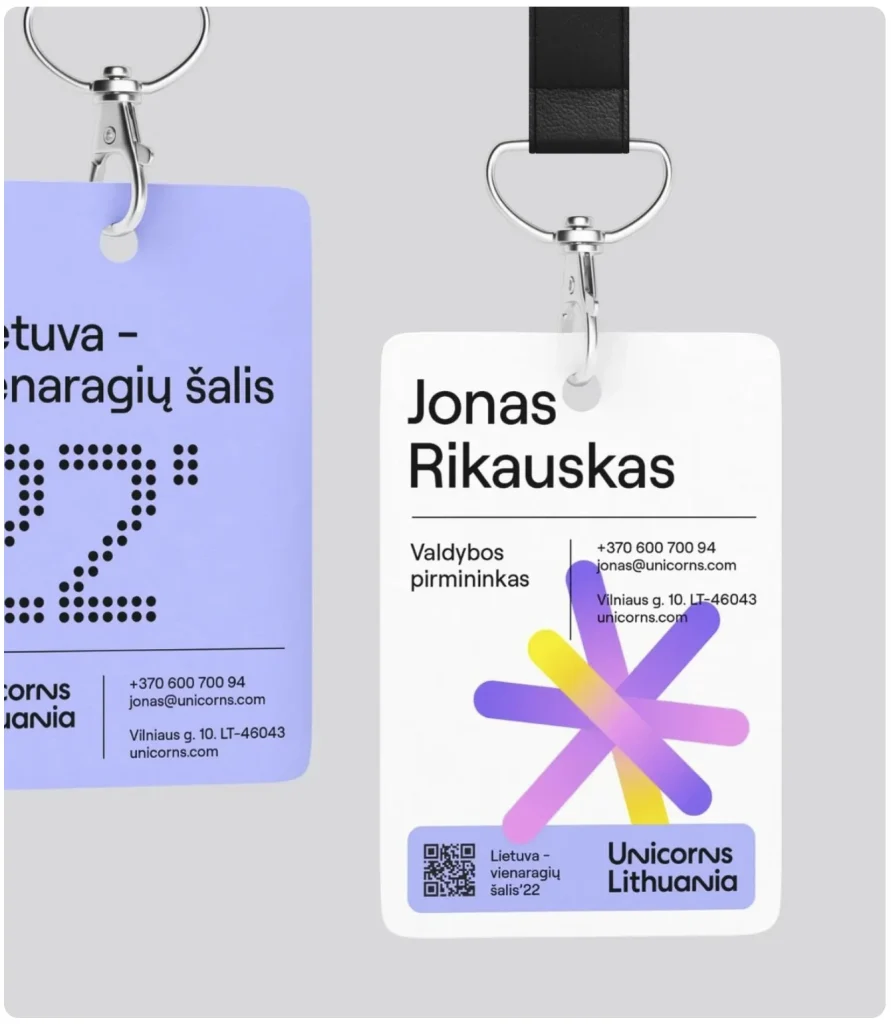
Front — first name must shout
- First name is the hero. Use 36–48 pt, bold, clean sans-serif (e.g., Montserrat, Arial, Helvetica).
- Last name, job title, organisation are smaller.
- Event logo can live at the top; sponsor logo belongs at the bottom; neither should upstage the person.
- Leave 1.5 cm from the top for lanyard holes.
- Use high contrast. Dark text on a light background is your safest bet.
Backgrounds & colour
- Light backgrounds with spot colour accents are ideal.
- If using dark backrounds, ensure the contrast is high for readability.
- Branded patterns are fine if they’re subtle and don’t fight the name.
Back — keep it useful and simple
- QR code to Agenda or evetn information = 2.5 cm square minimum. Test scan on a printed draft.
- Disposal guidance and location of recycling stations.
- Optional small sponsor logos in the bottom corners.
- Keep a white background, margins 2 cm top, 0.5 cm sides/bottom.

7. The Biggest Badge Mistakes We See (and How to Avoid Them)
After thousands of badges, these are the errors that keep repeating:
- Tiny guest names – unreadable at more than a metre. A badge has one job: to enable networking. Make names clear.
- Over-designed fronts – full-colour floods and jazzy graphics that bury the name. Design like Apple – keep it clean.
- QR codes too small – if it won’t scan, it’s useless. Minimum 2.3–2.5 cm.
- Back overload – Keep it simple: QR + disposal instructions.
Our advice: keep designs simple, bold, and functional. The person wearing the badge is the star.
8. The Badge Test
Print one. Hold it at arm’s length. Step back 2–3 metres.
- Can you read the first name instantly?
- Does it pass the blink test (name pops first, not a logo)?
- Does it feel balanced and uncluttered?
If yes → it’s Terra Tag-ready!

9. Skip the Chaos — Let Terra Tag Merge Guest Lists for You
Prefer a hands-off approach? Terra Tag merges your guest list, prints professional conference name badges, and delivers them ready to use — eco-friendly, recyclable, and beautiful. Yes, you can merge your guest list yourself. But if you’d rather skip the stress:
- We take your spreadsheet (CSV).
- We merge every guest name.
- We print on sustainable seed or recycled paper.
- We assemble eco-lanyards.
- We pack badges in guest-list order for smooth registration.
One vendor. One box. No last-minute meltdowns.
And the best part? Every badge is plantable, recyclable, and zero-landfill.
Guest list merges don’t have to end in chaos. With a clean CSV, you can merge your guest list confidently and print conference badges that make every guest feel seen or let Terra Tag handle it all.
